APKZs Download and Installation Guide for Android 2026
Description
APKZs has grown into a go-to place for Android users who want quick access to apps and games outside the usual app store limits. Whether you’re new to the site or just want a clear walkthrough, this article covers exactly how you can download and install different apps and games from APKZs, step by step.
What Type of Games and Apps Are Available on APKZs
APKZs covers a wide mix of Android content, spread across several categories on the site. You’ll find:
- Action and Strategy games for players who enjoy fast-paced or tactical gameplay
- Puzzle and Word games for casual, everyday play
- Communication and Social apps to stay connected and explore new platforms
- Music and Entertainment apps for streaming, media, and content creation
- Tools apps that help with device management, optimization, and daily utility tasks
- Maps & Navigation apps for location-based needs
Each category is organized so you can browse by interest instead of searching blindly. New apps and games are added regularly, so the library keeps expanding across these sections. Also try: Jazz World APK.
Step-by-Step: How to Download an APK from APKZs
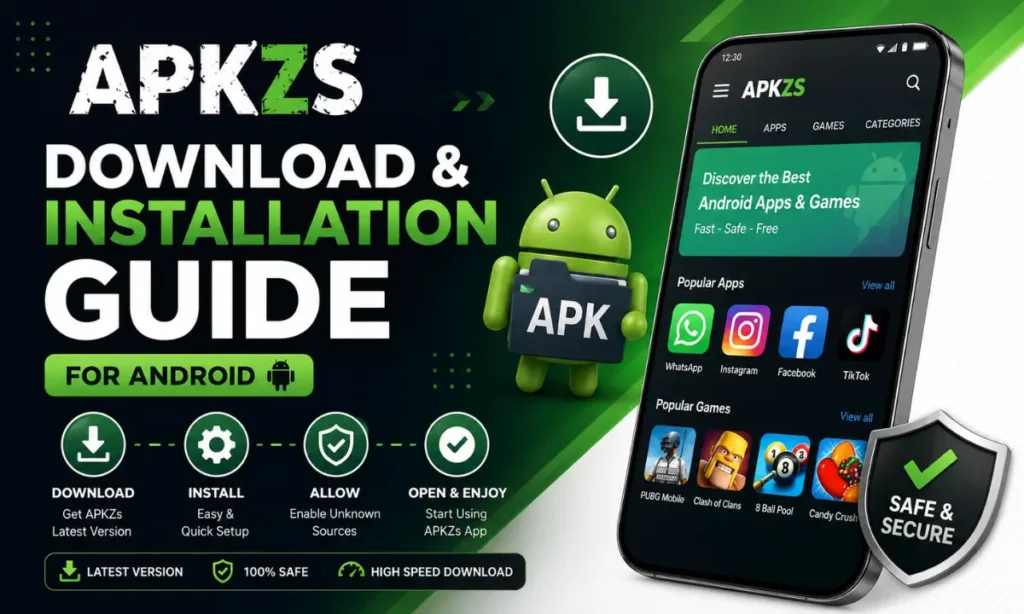
Downloading from APKZs follows a simple process:
Step 1: Visit official website and open app or game page you want
Use the google search or any browse and go the apkzs. Browse through categories until you find the app or game you’re looking for.
Step 2: Tap the download button
Each app page has a clearly marked download button near the top. Tap it to start the download.
Step 3: Wait for the file to download
The APK file will save to your device’s Downloads folder. Download time depends on file size and your internet speed.
Step 4: Locate the file using your file manager
Once the download finishes, open your file manager app and head to the Downloads folder to find the APK file.
Step-by-Step: How to Install the APK
Step 1: Tap the downloaded .apk file
This opens the installation prompt.
Step 2: Allow installation from this source if prompted
Android may ask for permission the first time you install a file from outside the Play Store. Approve it to continue.
Step 3: Tap Install and wait
The installation process usually takes just a few seconds.
Step 4: Open the app once installed
Once done, you’ll see an Open button, or you can find the app in your app drawer.
How to Enable “Install Unknown Apps”
If your device blocks the installation, you’ll need to turn on this permission first:
Go to Settings > Apps > Special app access > Install unknown apps, then select the browser or file manager you used to download the file, and turn the permission on.
Safety Tips While Downloading
A few basics to keep in mind while downloading from APKZs:
- Only download from the official APKZs site
- Avoid tapping on pop-ups or unrelated links
- Keep your device’s antivirus updated
- Check app permissions before granting access
Conclusion
Downloading and installing apps from APKZs is a straightforward process once you know the steps. From picking the right app to enabling the correct permissions, this guide should help you get set up quickly and safely. Explore the site’s categories to find apps and games that match what you’re looking for.